Personal
$9/month billed yearly ($108/yr) or $19 monthly, 40 photos a month, JPG and PNG up to 4,000 px
Getting a clear result from a blurry photo is partly the tool and partly a few good habits around it. This guide walks through the whole process, from finding the best original file to checking the result at 100 percent zoom and sending it to print. Follow it once and every photo after that takes a minute.
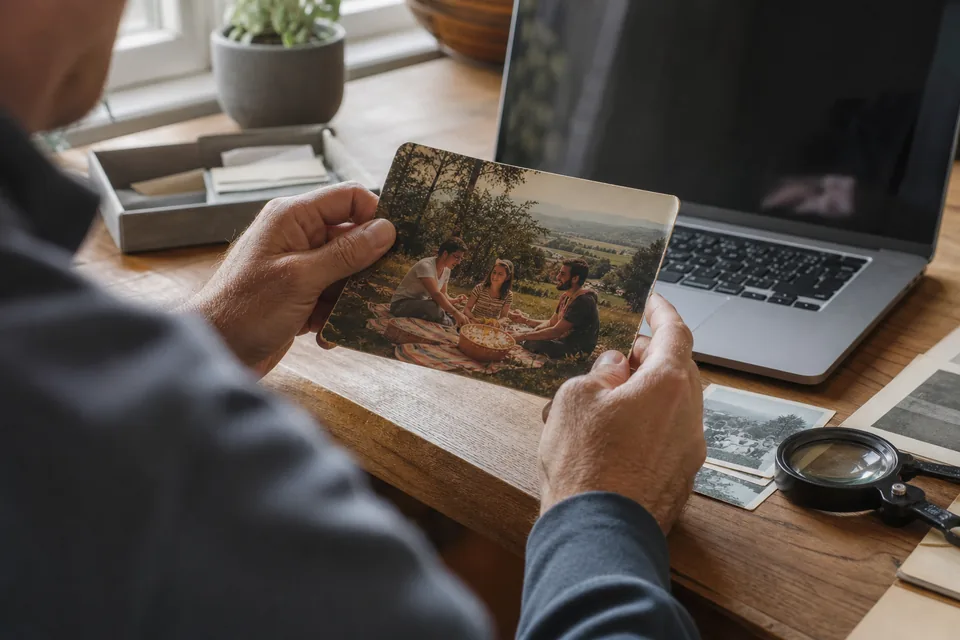
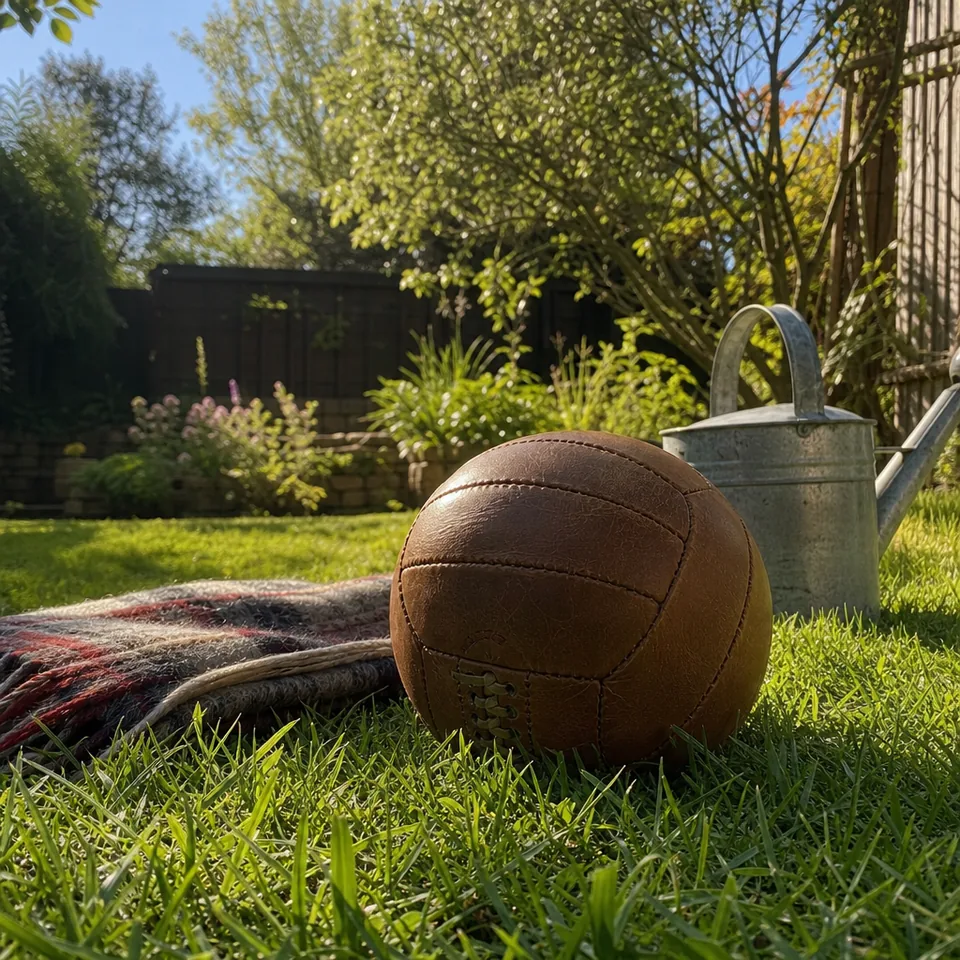
The single biggest improvement happens before any AI runs: starting from the right file. Every time a photo is sent through a messaging app, posted to social media or screenshotted, it loses resolution and gains compression blocks. Those blocks look like blur but carry less real detail.
A little cleanup helps the AI focus on what matters. Crop away large empty areas so more of the processing goes to your subject, but do not crop so tight that you lose context around a face. Rotate a sideways photo before you upload. Leave color and brightness alone for now, because heavy edits made in a phone app first can bake in artifacts that are harder to remove later.
If a photo is very small, for example 600 px wide, do not enlarge it yourself in another app. Upload it as it is and let the upscale step do the enlarging, since it rebuilds edges instead of stretching pixels.
Presets tell the restoration what to expect, so it can tune the deblur and the contrast for that kind of picture.
Then choose strength. Gentle keeps the result very close to the original and suits photos that are only slightly soft. Balanced is the right start for most. Strong is for photos that are clearly smeared. Turn on the 2x upscale if you plan to print or crop.
A blurry photo can look sharp on a small phone screen and still disappoint on paper. Always judge the result zoomed to 100 percent, where one pixel of the image fills one pixel of the screen. Use the zoom loupe on the result page, or download and open the file on a computer.
If something looks off, run the same photo again with a different preset or a gentler strength. Small adjustments often matter more than going to the strongest setting.
On Personal you can download JPG or PNG up to 4,000 px on the long edge. Choose JPG for sharing and online albums, and PNG when you plan further editing, since it keeps every pixel. Pro adds TIFF export and output up to 8,000 px, which print labs and photo book services handle well. Your results stay in your history for 30 days, so you can download a second format later without using another photo from your allowance.
For sharp prints, aim for about 300 pixels per inch. A 4x6 print needs 1,800 px on the long edge, an 8x10 needs 3,000 px, and an 11x14 needs about 4,200 px. Order a small test print before an expensive canvas, especially for old family photos, because paper shows faint grain that a screen hides. If a print size is just over what your file supports, the Pro 4x upscale usually closes the gap. Our page on how to increase resolution of image files covers sizes in more detail.
For the reasons behind these limits, see how AI unblurs a photo. For photos taken on an iPhone, our page on blurry iPhone photos lists the usual causes.
The preview is free once, for one photo per device. Full-resolution repairs come with a plan, and the yearly option saves 50 percent.
$9/month billed yearly ($108/yr) or $19 monthly, 40 photos a month, JPG and PNG up to 4,000 px
$24/month billed yearly ($288/yr) or $49 monthly, 120 photos a month, batches of 20, 4x upscale, TIFF
$74/month billed yearly ($888/yr) or $149 monthly, 360 photos a month, batches of 100, API, team seats
See everything on the pricing page.
Phone photo for everyday shots, Old print for scans of paper photos and Video still for frames from videos. Product photo and Real estate interior are tuned for listings.
Small screens hide softness. Check the result at 100 percent zoom, and make sure the file has about 300 pixels per inch at the print size you order.
Each full-resolution run counts as one photo. Downloading the same result again from your 30-day history does not.
Yes, and the result improves, but an original file always gives a better outcome because it holds more real detail.
Pick the photo you almost deleted and run it through the steps above.