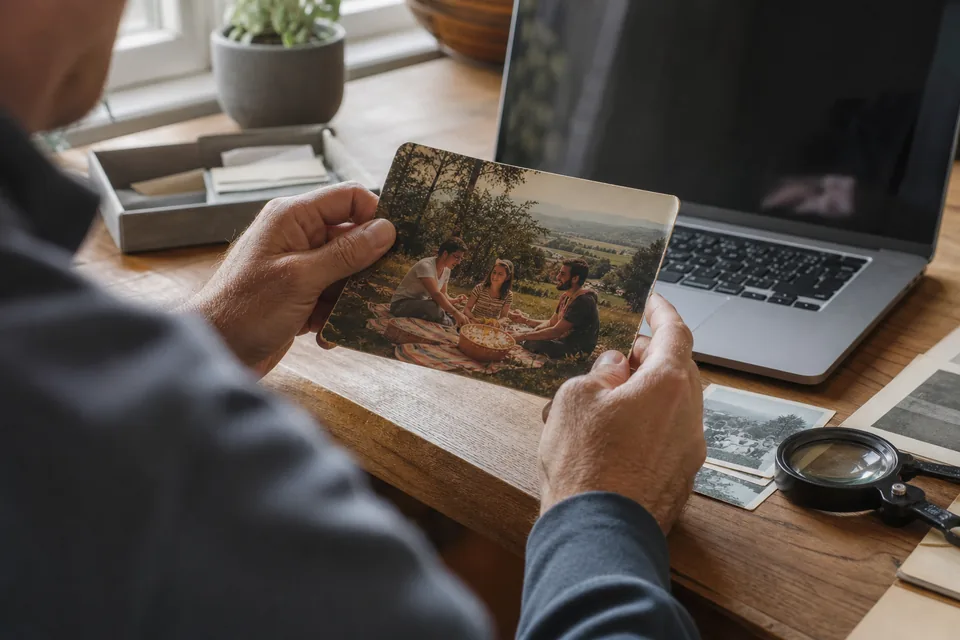
Handle old prints safely before you start
The original print is the one thing you cannot replace, so protect it first.
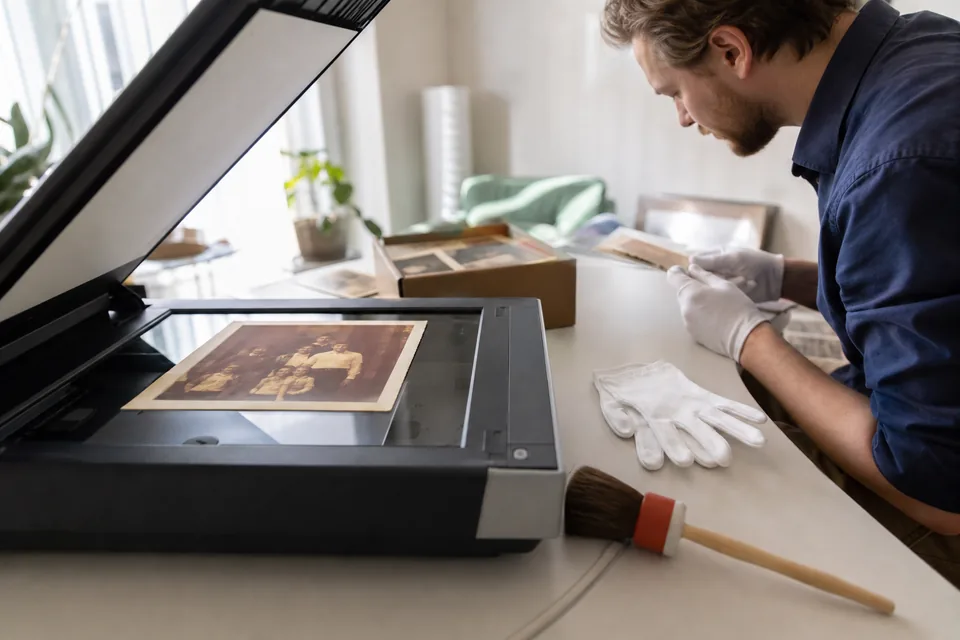
- Wash and dry your hands, or wear clean cotton or nitrile gloves. Skin oils leave fingerprints that become permanent stains over time.
- Hold prints by the edges and support large or fragile ones from underneath with a sheet of card.
- Do not try to flatten a tightly curled print by force. Old photo paper cracks. Scan it as it is, or let it relax for a day under a light weight between sheets of clean paper.
- Leave stuck photos alone. Prints glued to album pages or to glass can tear if pulled. Scan them in place, page and all.
- Remove loose dust with a soft brush or a blower bulb, never with a cloth, water or cleaning spray.
- Keep food and drinks off the table you work on.
Work through one album or envelope at a time and return each print to its place right after it is scanned. Write the album name on a sticky note next to the scanner so the files are easy to name later.
Should You Scan With a Flatbed or a Phone
Both can work. The right choice depends on how many photos you have and what you plan to do with them.
| Option | Strengths | Weaknesses | Best for |
|---|---|---|---|
| Flatbed scanner | Even light, no glare, true resolution of 600 to 1200 dpi, flat image with no perspective distortion | Slower per photo, needs a computer | Prints you want to enlarge, damaged photos, anything you will reprint |
| Phone with a scanning app | Fast, nothing to buy, good for prints stuck in albums | Glare on glossy prints, lower real detail, slight distortion at the edges | Large batches for sharing, quick family archives |
| Photo scanning service | No work on your side | Prints leave the house, less control over settings | Very large collections, slides and negatives |
If you use a phone, put the print flat on a dark matte surface near a window with indirect daylight, turn off the flash, hold the phone exactly parallel to the print and fill the frame. Scanning apps that take several shots and combine them reduce glare on glossy paper.
Scan at 600 dpi or more
Resolution is the setting that matters most, because you cannot add real detail later.
- 600 dpi is a good minimum for standard prints such as 3.5 x 5 and 4 x 6 inches. A 4 x 6 inch print at 600 dpi becomes a 2400 x 3600 pixel file, enough to reprint it larger.
- 1200 dpi is worth it for small prints (wallet size, contact prints) and for photos you plan to enlarge a lot.
- Scan in color even for black and white photos. The color data helps when removing stains and yellowing, and you can convert to black and white at the end.
- Turn off the scanner's own sharpening, dust removal and color correction. Built-in filters often blur detail and are hard to undo.
- Save the scan as TIFF or PNG. A JPEG scan throws away detail you might need for restoration.
- Clean the scanner glass with a microfiber cloth before each session, because dust on the glass appears on every scan.
- Scan the whole print including the white border, then straighten and crop later.
Scanning at a higher resolution makes larger files, but storage is cheap compared to scanning the same album twice.
Clean dust and scratches digitally
Even careful scanning picks up specks, hairs and fine scratches. Clean them before you sharpen anything, because sharpening makes them more visible.
- Healing or spot removal brush. Every photo editor has one, including Photoshop, Lightroom, GIMP and the free editors on phones. Click or paint over each speck and the tool fills it with the surrounding texture.
- Clone stamp. Better for long scratches crossing faces or straight lines, because you choose exactly where the replacement texture comes from.
- Dust and scratches filter. Useful on large plain areas such as skies or backgrounds, but it softens detail, so mask it away from faces and edges.
Work at 100 percent zoom and go across the photo in a grid so you do not miss areas. Leave the natural grain of the film alone. Grain is part of the photo and removing it completely gives a plastic look.
Restore sharpness and missing detail
Many old photos look soft even when they are clean. Lenses of the time were softer, the subject moved during long exposures, and small prints from tiny negatives held limited detail. AI restoration rebuilds edges, fine texture and facial features from what remains in the scan, and it can enlarge the image at the same time.
- Choose the Old print type. It is tuned for paper texture, film grain and the soft optics of older cameras.
- Use Gentle or Balanced strength for portraits. Old faces are restored carefully, not reshaped, and a gentle setting keeps the character of the original.
- Upscale 2x if you plan to print larger than the original print.
- Compare the result with the scan using the before and after slider, and look closely at eyes, hair and clothing.
For heavily damaged photos (large tears, missing corners, faces partly gone), restoration improves what is there but cannot invent a missing part accurately. In those cases, a retoucher may need to rebuild the missing area by hand. Our page on picture restoration shows which kinds of damage respond well, and the comparison of photo restoration software explains how different tools approach it.
Bring back faded color
Color prints from the 1960s to the 1990s often drift toward red, magenta or yellow as their dyes fade at different speeds. Black and white prints turn yellow or brown.
- Start with Auto Color or Auto Levels in your editor and see what it does. On many faded prints this alone restores most of the balance.
- Set a white point and a black point. Use the eyedropper on something that should be white (a shirt, a wall, the print border) and something that should be black.
- Adjust curves per channel when one color dominates. Lowering the red curve slightly is the usual fix for red-shifted prints.
- Remove yellowing from black and white prints by converting to black and white, then adding a very light warm tone if you want an aged look.
- Keep it believable. Old color film never looked like a modern phone photo, and oversaturated skin tones are the most common mistake.
Archive the files so they last
A restored photo is only safe if the file survives. Treat the scans as the new originals.
- Keep three versions: the raw scan, the cleaned and restored master as TIFF or PNG, and a JPEG copy for sharing.
- Name files with the year and the people or place, for example 1974-grandma-lake-cabin.tif. Dates at the start sort the files in time order.
- Add captions to the file metadata while the people who remember are still around to ask.
- Follow the 3-2-1 rule: three copies, on two different kinds of storage, with one copy kept away from home or in cloud storage.
- Store the original prints in acid-free envelopes or archival boxes, in a cool, dry room, away from attics, basements and sunlight.
- Check the backup once a year by opening a few files.
Print new copies for the family
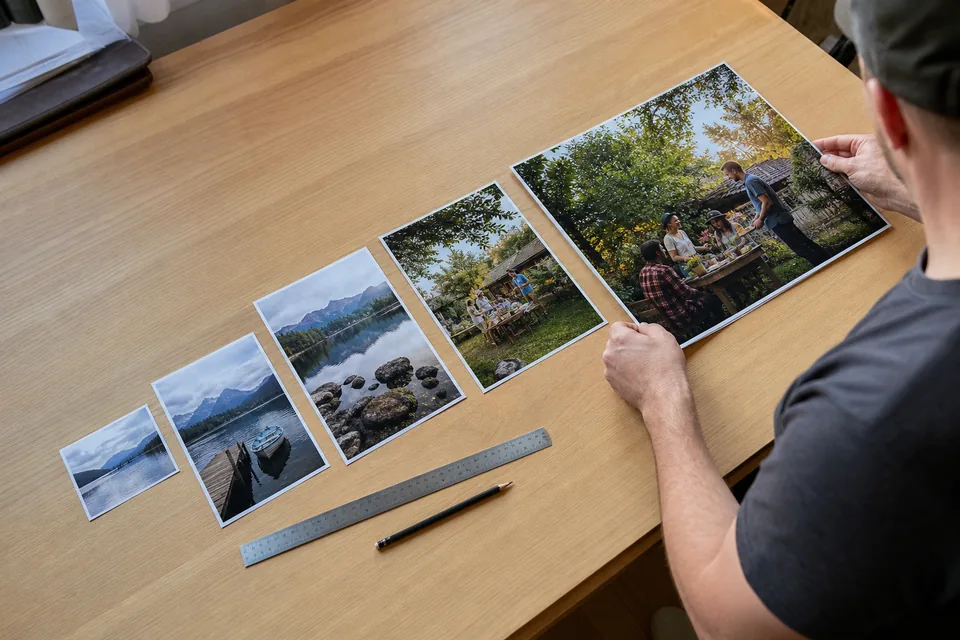
A restored photo deserves to be printed. For a sharp result, the file needs enough pixels for the print size you choose. As a rule of thumb, 300 pixels per inch gives the best quality, so a 5 x 7 inch print needs 1500 x 2100 pixels and an 8 x 10 inch print needs 2400 x 3000 pixels. Our full guide on what resolution do you need to print a photo has a table for every common size.
Print on matte or lustre paper for a look closer to the original prints, and order a test print before you print copies for the whole family. If the file is too small for the size you want, enlarge it first with an image upscaler rather than letting the print lab stretch it.
Restore your first old photo today
Scan one photo you care about, open UnblurPicture and choose Old print. The preview runs in your browser and shows the restored version next to the scan. With a plan you download it at full resolution with no watermark, and the Pro plan adds batches of 20 photos for whole albums.