Why iPhone photos come out blurry
Knowing the cause tells you which fix to try first.
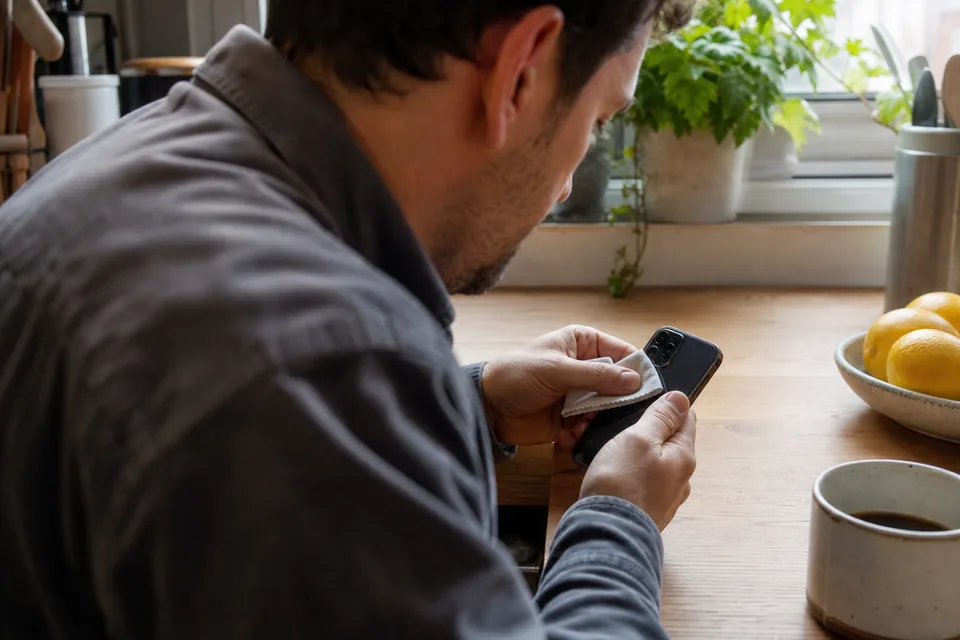
- A dirty lens. The lenses sit flat on the back of the phone and pick up fingerprints and pocket lint. The result is a soft, hazy look with glowing halos around lights.
- Missed focus. The camera locked onto the background, a nearby object or the wrong face. The subject is soft while something else is sharp.
- Hand shake in low light. Indoors and at night the iPhone uses a longer exposure. Any movement during that time smears the whole frame.
- Subject motion. Kids, pets and sports move faster than the shutter, so they blur while the background stays sharp.
- The wrong lens. In dim light the telephoto lens collects less light than the main 1x lens, so the iPhone may use a slower shutter or switch to a cropped image from the main camera.
- Too close. Every lens has a minimum focus distance. Closer than that, nothing is sharp unless macro mode takes over on models that have it.
- Compression after sharing. A photo that looked fine on your phone can look soft after it passes through a chat app that shrinks and recompresses it.
Clean the lens before anything else
This is the cheapest fix and it solves more blur than any setting. Wipe each lens on the back of the phone with a clean microfiber cloth, using small circles. For stubborn smudges, breathe lightly on the glass and wipe again. Avoid paper towels, which can scratch coatings, and avoid spraying liquid directly on the phone. If you use a case, check that its edge does not sit over the lenses and that no lint is trapped between the case and the glass.
A useful test is to photograph a lamp or a streetlight at night. A clean lens gives a tight bright point, while a smudged lens gives a hazy glow or streaks.
iPhone camera settings that prevent blur
A few settings in the Camera app and in Settings make sharp photos far more likely.
- Tap to focus. Tap the subject on the screen before you shoot. The yellow box shows where the camera is focusing.
- Lock focus and exposure. Press and hold on the subject until AE/AF Lock appears. Focus then stays put even if something moves into the frame.
- Use the 1x main lens in dim light. It has the widest aperture and usually the best stabilization, so it needs the shortest shutter time. Step closer instead of zooming.
- Turn on Macro Control on models that support macro. In Settings, Camera, enable Macro Control so you can see when the camera switches to the ultra wide lens for close-ups.
- Use burst for motion. Swipe the shutter button to the left, or enable Use Volume Up for Burst in Settings, Camera. Pick the sharpest frame from the burst later.
- Shoot in Photo mode at full resolution. On models with 48 megapixel cameras, the higher resolution option (HEIF Max or ProRAW Max, depending on model) captures more detail, which gives any later repair more to work with.
- Keep HDR and Smart HDR on. They help with difficult light and do not add blur on their own.
- Hold steady after the click. The iPhone keeps capturing for a moment after you tap the shutter, especially in low light. Wait until the shutter animation finishes before moving.
Use Night mode the right way
Night mode turns on automatically when the scene is dark, and a yellow moon icon with a number of seconds appears at the top of the screen. The number is how long the iPhone will capture. During that time it combines many frames, and the less the phone moves, the sharper the result.
- Brace the phone. Hold it with both hands, elbows tucked in, or rest it on a wall, a table or a railing.
- Watch the crosshair. While capturing, the iPhone shows two crosshairs. Keep them lined up to reduce shake.
- Use a tripod for longer exposures. When the phone detects it is on a tripod, it allows exposure times of up to 30 seconds.
- Shorten it for people. Tap the moon icon and drag the slider toward a shorter time when photographing someone who cannot hold still. A slightly darker, sharper photo is easier to fix than a bright, blurred one.
- Turn it off for moving subjects. For action at night, use more light or flash instead, because a long capture will always blur motion.
Pick a sharper Live Photo key photo
If Live Photos is on (the concentric circles icon in the Camera app), every photo also records about a second and a half of video around the moment you pressed the shutter. When the main photo is blurry, a frame a fraction of a second earlier or later may be sharper.
- Open the photo in Photos and tap Edit.
- Tap the Live Photo icon at the bottom of the screen.
- Drag the frame viewer slowly and stop on the sharpest frame.
- Tap Make Key Photo, then Done.
Keep in mind that frames taken from the Live Photo video can be lower resolution than the original still, so this works best for photos you will view on a screen or share, not for large prints. The original key photo stays available, so you can switch back at any time.
Edits in the Photos app that help a soft photo
The Photos app has three adjustments that make a mildly soft photo look crisper. Open the photo, tap Edit, then Adjust, and scroll through the dials.
- Sharpness. Increases contrast along edges. Small values (around 10 to 30) look natural, while high values create halos.
- Definition. Adds contrast in mid-tones, which makes texture and outlines stand out without the hard halos of sharpening.
- Noise Reduction. Smooths grain from low light photos. Use it before or together with sharpness, because sharpening also sharpens noise.
These edits are non-destructive, so you can revert to the original at any time with Edit and then Revert. They are good for slight softness. They do not remove motion blur or rebuild missed focus, because they only work with the edges that are already in the image.
Repair a photo that is still blurry
When the Live Photo trick does not help and Photos app edits only make the blur look harsher, the next step is a dedicated repair tool. AI restoration rebuilds edges and texture from what the photo still contains, so it handles hand shake, missed focus and low light noise far better than a sharpness slider.
- Use the original. AirDrop the photo to your computer, or open the site directly in Safari on the iPhone, so you work with the full-resolution file rather than a shared copy.
- Choose Phone photo as the photo type. It is tuned for the noise and processing typical of phone cameras.
- Start with the Balanced strength. Move to Strong only for heavy blur, and to Gentle for faces.
- Compare with the slider. Check eyes and edges at full size before you download.
The one-time preview of the app to unblur photos runs in Safari with nothing to install, and it shows a 640 pixel watermarked result so you can judge the repair before choosing a plan. More detail on typical iPhone problems is on the page about blurry photos iphone users run into.
What cannot be fixed
Even the best repair has limits. A face that covered only a few dozen pixels, or a photo that is nothing but long streaks, will improve but will not become perfectly sharp, because the detail was never captured. Faces are restored carefully and are not reshaped, so a heavily blurred face stays a little soft rather than turning into a different face. If you plan to print the photo, read our guide on what resolution do you need to print a photo before you pick a size, and see the broader guide on how to unblur a picture for the methods compared side by side.
Fix your blurry iPhone photo now
Open UnblurPicture in Safari, tap the upload area and pick the photo from your library. The preview runs in your browser and shows the before and after in under a minute. Plans start at $9 a month billed yearly for 40 full-resolution photos with no watermark.