PPI vs DPI and why the difference matters
The two terms are used as if they were the same, but they describe different things.
- PPI (pixels per inch) describes the image file. It is how many of the photo's pixels are spread across each inch of the print. This is the number you control.
- DPI (dots per inch) describes the printer. It is how many tiny ink dots the printer places per inch. An inkjet might print at 1440 or 2880 DPI, using many dots to reproduce the color of each single pixel.
When a print lab or a guide says "300 DPI", it almost always means 300 PPI in your file. The resolution setting stored inside a JPEG (often 72 or 300) does not change the pixels at all. Only the pixel dimensions matter, for example 3000 x 2400 pixels.
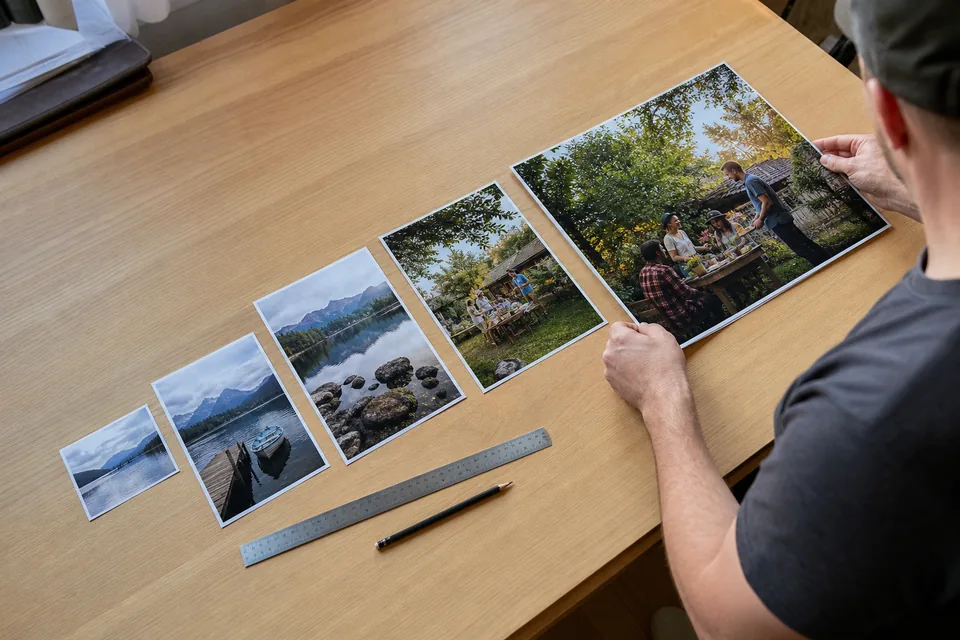
To work out the largest good print from a file, divide each pixel dimension by 300. A photo of 3000 x 2400 pixels prints at 10 x 8 inches at 300 PPI. Divide by 150 instead to find the largest acceptable size, here 20 x 16 inches.
Pixel dimensions for common print sizes
The table shows the pixels needed for each print size at 300 PPI (best quality) and at 150 PPI (acceptable minimum), plus the megapixel count at 300 PPI.
| Print size (inches) | Pixels at 300 PPI | Megapixels at 300 PPI | Minimum pixels at 150 PPI |
|---|---|---|---|
| 4 x 6 | 1200 x 1800 | 2.2 MP | 600 x 900 |
| 5 x 7 | 1500 x 2100 | 3.2 MP | 750 x 1050 |
| 8 x 10 | 2400 x 3000 | 7.2 MP | 1200 x 1500 |
| 8.5 x 11 | 2550 x 3300 | 8.4 MP | 1275 x 1650 |
| 11 x 14 | 3300 x 4200 | 13.9 MP | 1650 x 2100 |
| 12 x 18 | 3600 x 5400 | 19.4 MP | 1800 x 2700 |
| 16 x 20 | 4800 x 6000 | 28.8 MP | 2400 x 3000 |
| 20 x 30 | 6000 x 9000 | 54 MP | 3000 x 4500 |
| 24 x 36 | 7200 x 10800 | 77.8 MP | 3600 x 5400 |
The formula is simple: inches multiplied by PPI equals pixels. For a print size not in the table, multiply the width and height in inches by 300 for best quality or by 150 for the minimum.
Note that the proportions must match too. Most phone photos have a 4:3 ratio, while a 4 x 6 print is 3:2 and an 8 x 10 print is 5:4, so some cropping is usually needed. Crop first, then check the pixel dimensions that are left.
Viewing distance changes the numbers
The eye sees less detail the farther away it is, so large prints that hang on a wall need fewer pixels per inch than small prints held in the hand.
- Held in the hand (photo prints, albums, cards). Aim for 300 PPI. Anything under 200 PPI may look soft up close.
- On a desk or shelf, about 3 feet away. 200 PPI looks sharp to most people.
- On a wall, viewed from 5 to 10 feet. 100 to 150 PPI is usually enough.
- Posters and banners viewed from across a room or a street. 50 to 100 PPI can work.
This is why a 24 x 36 inch poster rarely needs a 78 megapixel file. At 150 PPI it needs 3600 x 5400 pixels, which many cameras and modern phones capture directly. A small print viewed closely is far less forgiving than a large one viewed from a distance.
How large are your phone and camera files
Most photos taken in the last few years are big enough for standard prints. A 12 megapixel phone photo is about 4032 x 3024 pixels, which prints at roughly 13 x 10 inches at 300 PPI. A 48 megapixel photo taken at full resolution reaches about 27 x 20 inches.
Problems usually come from somewhere else:
- Photos saved from messaging apps or social networks, which are often shrunk to around 1000 to 2000 pixels on the long edge.
- Screenshots, which only have the resolution of the screen.
- Digital zoom, which crops the image and leaves fewer real pixels.
- Old digital photos from early cameras with 2 to 5 megapixels.
- Stills taken from video, which are usually 1920 x 1080 (Full HD) or 3840 x 2160 (4K). A Full HD frame prints well only up to about 6.4 x 3.6 inches at 300 PPI. Our guide on how to get a clear still from a video covers that case.
Always look for the original file first. It may be in your phone's library or cloud backup at full size even if the copy you have is small.
Upscaling a photo for print
When the file is too small for the print you want, you have three options: print smaller, accept a softer print, or upscale the file before printing.
Simple resizing in an editor or by the print lab spreads the existing pixels over a bigger area. The print gets bigger but no sharper, and edges look soft or jagged. AI upscaling rebuilds edges and texture as it enlarges, which gives a much cleaner result at 2x and is usually still good at 4x on clean photos.
- Upscale once, to the size you need. Upscaling a file several times in a row multiplies artifacts.
- Fix blur before or during upscaling. Enlarging a blurry photo gives a bigger blurry photo. UnblurPicture repairs blur and upscales in the same pass.
- Check faces at 100 percent after upscaling. They are restored carefully and not reshaped, but tiny faces in a group photo have little detail to work with.
- Be realistic about tiny files. A 600 pixel image upscaled 4x reaches 2400 pixels, enough for a good 8 inch print, but detail that was never in the image is reconstructed, not recovered.
The Personal plan upscales 2x up to 4,000 pixels, enough for a 13 x 10 inch print at 300 PPI. The Pro plan upscales 4x up to 8,000 pixels, enough for about 26.5 x 20 inches. Read more about how to increase resolution of image files, or see the dedicated image upscaler page.
File formats for printing
The format you send to the printer affects quality more than many people expect.
| Format | When to use it | Notes |
|---|---|---|
| JPEG at maximum quality | Most photo labs and online print services | Small files, universally accepted. Save once at quality 10 to 12 (or 90 to 100 percent) and avoid re-saving |
| TIFF | Fine art printing, professional labs, archiving | Lossless, large files, supports 16-bit color |
| PNG | Graphics, screenshots, files with text | Lossless, but not every lab accepts it |
| Photo books, cards, layouts with text | Use the lab's own export settings |
Use the sRGB color profile unless the lab asks for something else. Most consumer labs expect sRGB, and files in wider color spaces can print dull if the lab ignores the profile.
A quick checklist before you order a print
- Find the original file, not a shared copy.
- Crop to the exact proportions of the print size.
- Check the pixel dimensions after cropping and divide by 300 to see the best-quality size.
- If the file is too small, upscale it to the target size once.
- Repair blur, noise and old damage before printing. For old prints, our guide on how to restore old photos at home walks through the full process.
- Save as high-quality JPEG or TIFF in sRGB.
- Order one test print before printing a large size or many copies.
Make your photo big enough to print
Upload the photo you want to print and see a preview of the repaired version in your browser. With a plan you download it sharp, upscaled and ready for the print size you need, with no watermark.