Know which kind of blur you have
Before you touch a slider, zoom to 100 percent and look at the edges in the picture. The pattern of the blur tells you which fix will work, because each type of blur damages the image in a different way.
- Motion blur from a shaking hand. Every edge is smeared in the same direction, often with a faint double outline. This is the most common blur in phone photos taken indoors or at night.
- Subject motion. The background is crisp but a moving person, pet or car is streaked. Only part of the frame needs repair.
- Focus blur (defocus). Edges spread evenly in all directions into soft round halos. The camera focused in front of or behind the subject.
- Soft optics and haze. The whole frame looks slightly milky, from a smudged lens, a cheap lens or shooting through glass.
- Low resolution. The photo is sharp at its real size but looks soft when enlarged, because there are simply too few pixels.
- Compression damage. Blocky squares and smeared color from heavy JPEG saving or messaging apps that shrink photos.
Many real photos mix two or three of these. A dim party photo, for example, often has a little hand shake, a little missed focus and visible noise all at once.
What blur does to the detail in a photo
Blur is not a layer sitting on top of a sharp picture that you can peel away. Each point of light in the scene was spread over many pixels when the photo was taken, and neighboring points were mixed together. Fine detail such as eyelashes, small text on a sign or the weave of fabric gets averaged into a smooth area.
Mild blur leaves enough of the original structure in the pixels that it can be rebuilt with good accuracy. Severe blur mixes so much that several very different originals would produce the same blurry result. In that case any tool, human or software, has to make an educated reconstruction rather than recover the true detail. Keeping that difference in mind saves a lot of disappointment.
Editor sharpening vs deconvolution vs AI restoration
There are three broad ways to unblur a picture, and they work on very different principles.
| Method | How it works | Good for | Weak spot |
|---|---|---|---|
| Editor sharpening (unsharp mask, clarity, structure) | Raises contrast along edges so they look crisper | Slight softness, final polish before printing | Does not remove blur, adds halos and noise when pushed |
| Deconvolution | Estimates the blur pattern and mathematically reverses it | Even, predictable focus or straight motion blur | Ringing artifacts, very sensitive to noise and to a wrong blur estimate |
| AI restoration | A model trained on many sharp and blurred pairs predicts the sharp image | Mixed blur, noise, old prints, low resolution | Can invent texture if pushed too far on very damaged images |
Editor sharpening is built into nearly every photo app, including Photoshop, Lightroom, Snapseed and the editors on your phone. It is quick and safe at low settings, but it only makes existing edges stand out. A blurred eye stays blurred, just with more contrast around it.
Deconvolution is the classic technical answer. Tools such as Photoshop's Shake Reduction (in older versions) and several astronomy and microscopy programs use it. It can be impressive on a clean photo with one simple type of blur, and it struggles once the blur varies across the frame or the image is noisy.
AI restoration, which is what we use at UnblurPicture, learns what sharp detail usually looks like and rebuilds it from the clues still present in the pixels. It handles mixed blur and noise much better than the older methods, and it can increase resolution at the same time. You can read a plain-language walkthrough on how AI unblurs a photo.
Steps to unblur a picture
These steps work whichever tool you choose, and they keep you from wasting effort on a file that will not get better.
- Start from the original file. Find the photo on the device that took it, in the camera roll or the cloud backup at full size. Copies sent through chat apps or social networks are often shrunk and recompressed, which removes the very detail you want to recover.
- Crop only after the repair. The tool has more context to work with when it sees the whole frame, and you can crop the finished result.
- Pick the photo type. A scanned print, a phone photo and a frame from a video need different handling. In UnblurPicture you choose Old print, Phone photo, Product photo, Real estate interior or Video still before you start.
- Start gentle. Use the lowest strength that fixes the problem. Strong settings make faces look waxy and skies look grainy.
- Compare at 100 percent and at viewing size. Zoom in on the eyes, text or edges you care about, then look at the whole photo the way someone will actually see it.
- Upscale only if you need a bigger file. Upscaling for a print or a large screen is useful, but there is no reason to make a phone wallpaper eight thousand pixels wide.
- Save in a lossless or high quality format. PNG or TIFF keep the repair intact, and a JPEG at high quality is fine for sharing.
To check whether a picture is worth processing at all, run the one-time unblur photo preview on it. It runs in your browser, returns a 640 pixel watermarked result and shows you in a minute what the repair will look like.
The best fix for each type of blur
Matching the method to the problem gives the cleanest result.
- Slight softness. Light editor sharpening or a gentle AI pass is enough. Stop the moment the edges look natural.
- Hand shake motion blur. AI restoration usually works best here, especially when the shake was small. Very long streaks, where a single point became a line many pixels long, can only be partly improved.
- Subject motion. Repair the whole photo at a gentle strength rather than masking one area, so the person and the background still match.
- Focus blur. Mild defocus responds well to AI restoration. A photo where the camera focused on the wall behind someone and their face is a soft disc will improve, but the face is reconstructed rather than recovered.
- Low resolution. Use upscaling designed for the job. Our page on how to increase resolution of image files explains when 2x and 4x enlargement make sense.
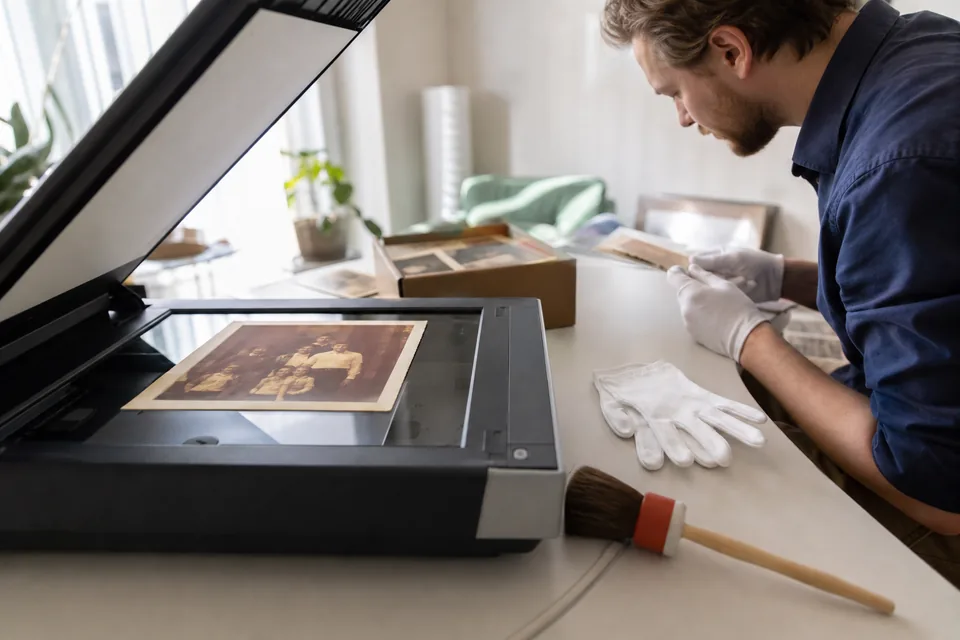
- Old prints. Scan first, then restore. Dust, fading and the softness of old lenses are a separate problem from blur, covered in the guide to picture restoration.
- Compression damage. Restoration removes much of the blocking. Always look for an original, uncompressed version first.
Where the limits are
It is worth being clear about what no software can do, ours included.
- Detail that was never captured cannot be recovered. If a face covered twelve pixels, the result is a believable face, not a guaranteed likeness.
- Extreme blur may not be fully recoverable. A photo that is pure streaks or a featureless smear will improve in contrast and shape, but it will not become a crisp image.
- Faces need a light touch. We restore faces carefully and do not reshape them, which means a badly blurred face stays somewhat soft rather than turning into someone else.
- Unblurring is not identification. Tools like ours produce an enhanced photo for viewing and printing. They are not meant for reading license plates, recognizing people in security footage or anything that requires evidence. UnblurPicture is not built or offered for that use.
- Text is a weak spot. Small blurred text is often guessed rather than restored, so never rely on a repaired image to read it.
How to avoid blur next time
A few habits reduce the number of pictures that need rescue at all.
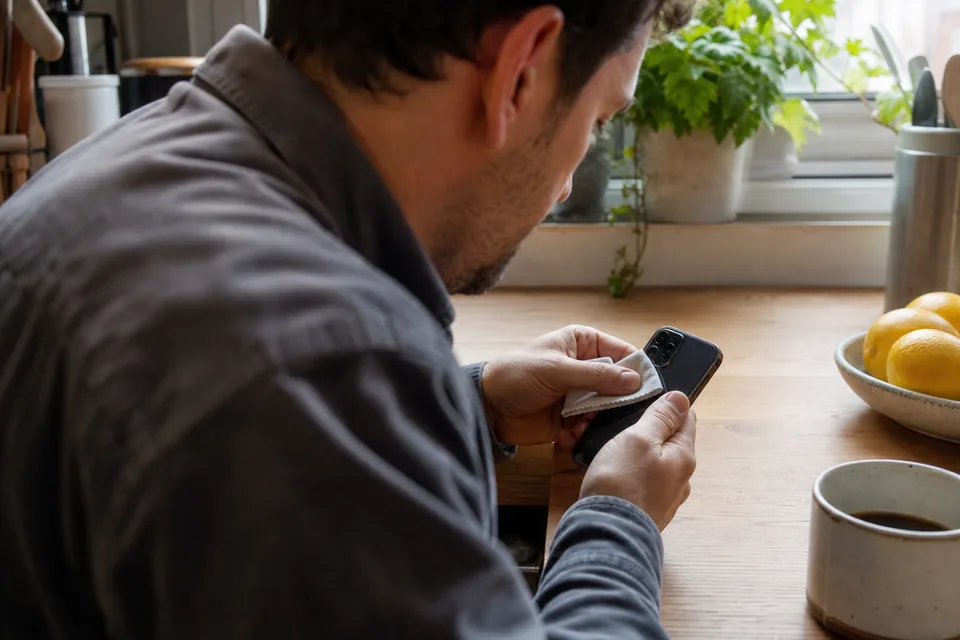
- Wipe the lens. Phone lenses pick up fingerprints constantly, and a smudge makes every shot hazy.
- Hold the phone with two hands and brace your elbows against your body or a wall.
- Tap to focus on the subject, and wait a moment before pressing the shutter.
- Use more light. Turning on a lamp or moving toward a window lets the camera use a faster shutter speed.
- Take several shots of anything that matters. One of them is usually sharper.
- For moving subjects, use burst mode or a sports or action setting.
If most of your blurry photos come from an iPhone, the dedicated guide on blurry iPhone photos goes through each camera setting in more detail.
Choosing a tool to unblur pictures
The right tool depends on how many pictures you have and what you do with them.
- One or two photos, mild blur. The sharpening already in your phone or desktop editor may be enough.
- Several precious photos with real blur. An AI restoration tool gives a visibly better result than sharpening alone.
- Regular work, such as product photos, listing photos or family archives. A subscription with a monthly allowance, batch upload and commercial use is the practical choice.
UnblurPicture plans start at $9 a month billed yearly for 40 full-resolution photos. Pro adds batches of 20, 4x upscaling and a commercial license, and Studio adds batches of 100, an API and team seats. All plans and limits are listed on the image enhancement software pricing page.
Try it on your own blurry picture
The fastest way to know whether a picture can be saved is to try it. Drop it into the preview, pick the photo type and see the before and after slider in your browser. If you like the result, choose a plan and download it at full resolution with no watermark.